

Table of Contents
ToggleGoogle Analytics 4 (GA4) introduces several game-changing features, and content groups are one of them. But what exactly are content groups in GA4? Simply put, content groups allow you to organize your website’s content into meaningful categories. This makes it easier to track performance, analyze user behavior, and fine-tune your content strategy. Ready to dive in? Let’s break it all down step by step!
Content grouping in Google Analytics 4 is like organizing a messy closet. You can sort your website’s content into neat categories, making it easier to track performance and analyze how users interact with different sections.
Understanding the Basics of Content Grouping
Content groups in GA4 help categorize your site’s pages, events, or app screens into broader categories. For instance, if you run an e-commerce store, you could have content groups for “Men’s Clothing,” “Women’s Clothing,” and “Accessories.”
Master GA4 Content Group for better data insights now!
Our team shows you how GA4 Content Groups improve data insights!
Why Use Content Groups in GA4?
By organizing your content, you simplify reporting and unlock deeper insights into user behavior. It allows you to see how different sections of your website contribute to overall goals. This clarity facilitates data-driven decisions and enhances website optimization. Ultimately, content grouping informs targeted improvements.
Benefits of Using Content Grouping in GA4
- Streamlined Analytics Reporting: Instead of sifting through individual pages or events, content grouping aggregates data, making reports more digestible.
- Improved User Behavior Insights: Want to know which section of your site gets the most engagement? Content groups furnish a high-level snapshot, facilitating targeted refinements.
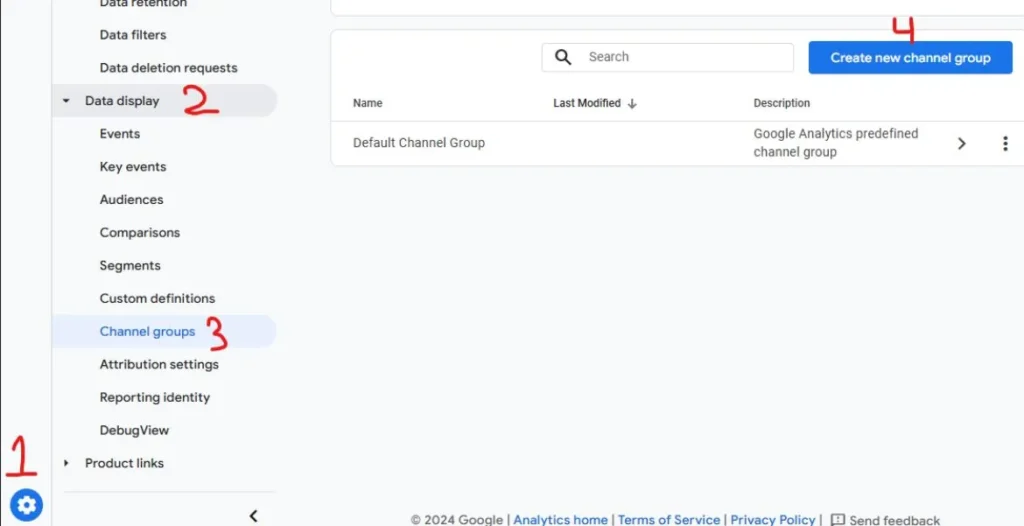
How to Create Content Groups in GA4?
- Sign in to Google Analytics: Access your GA4 property.
- Navigate to Configuration: Click “Configure” (gear icon) > “Properties” > “Data Settings”.
- Create Content Group: Click “Content Groups” > “Create”.
- Define Group: Enter group name, description (optional), and select “Page” or “Event” as the grouping dimension.
- Set Rules: Define inclusion rules using parameters like page path, title, or event category.
- Save: Click “Save” to create the content group.
Common Challenges and Solutions
Fixing Common Errors
A “content group not set” error usually means something went wrong during setup. Double-check your grouping rules or extraction parameters. Verify that rules are correctly applied and parameters match your content structure. Ensure accurate data by re-validating configuration.
Verifying Your Setup
Always validate your content groups in real-time reports to ensure they’re working as intended. Confirm data accuracy, identify potential issues, and refine grouping rules accordingly.
Leveraging Content Groups for Better Analysis
Content Performance Analysis
- Analyzing Key Metrics: Metrics like bounce rate, session duration, and conversion rates become more insightful when broken down by content group.
- Improving Content Engagement: Use these insights to identify underperforming content and make data-driven improvements.
Enhancing Your Content Strategy
- Aligning Content with Business Goals: Content groups help you see which types of content drive the most value, allowing you to align your strategy accordingly.
- Using Insights to Drive Growth: Analyzing user preferences informs content strategies, optimizing resonance, engagement, and conversion potential.
Advanced Features in GA4 Content Grouping
- Custom Event Tracking with Content Groups
Combine custom events with content groups for even more detailed tracking. This allows you to measure specific interactions like video plays or button clicks within content categories. - Integration with GA4 Reporting Features
Leverage GA4’s robust reporting tools to gain comprehensive insights into your grouped content.
Unlock advanced tracking with GA4 Content Grouping tips!
Our experts explain how GA4 Content Groups enhance data tracking!
Conclusion
Content grouping in GA4 isn’t just a fancy tool—it’s a game-changer for understanding user behavior and optimizing your website’s performance.Need help setting up or optimizing your GA4 content groups? Go SEO Monkey offers professional SEO and analytics services to take your website to the next level.
FAQs
- What is the purpose of content grouping in GA4?
Content grouping organizes your data for easier analysis and better insights into user behavior. - How do you create content groups for a B2B website?
Use rule-based or extraction-based grouping to categorize content like case studies and product demos. - Why is my GA4 content group not set?
This could be due to incorrect setup. Validate your analysis by double-checking grouping criteria and extraction parameters. - Can content grouping help improve user engagement?
Absolutely! By analyzing grouped content, you can optimize for better engagement. - What’s the difference between rule-based and extraction-based grouping?
Rule-based uses predefined criteria, while extraction-based pulls values directly from your content.